TAQ Magic Keys v5.0 is designed to give Traders full and advance flexibility to customize settings according to their trading preferences, strategies, risk level and trading goals.
General INPUT Variable Settings
Pips Multiplier
This setting adjusts how pips are calculated depending on your broker’s pricing format (4-digit, 5-digit, etc.).
Example: if Pip Multiplier is = 10, and trading pair is XAUUSD Price = 1935.25 and If price moves to 1935.35, Change =10 pip.
Most modern brokers use 5-digit pricing, so the default value is usually correct. In Ver 5.0 two values by default set and it automatically chosen, XAUUSD = 10 BTC =100, You should only change this value if your pip calculations look incorrect (for example, TP/SL appearing too small or too large). If unsure, keep it at default to avoid miscalculation. Incorrect settings here can affect all pip-based features like SL, TP, and trailing. You can change pips multiplier as per broker requirement while setting up v5.0 . Pro tip first use at demo for pair you trade to adjust as per your trading style
Note:- You can change all keys values from INPUT setting as per your requirement while setting up V5.0
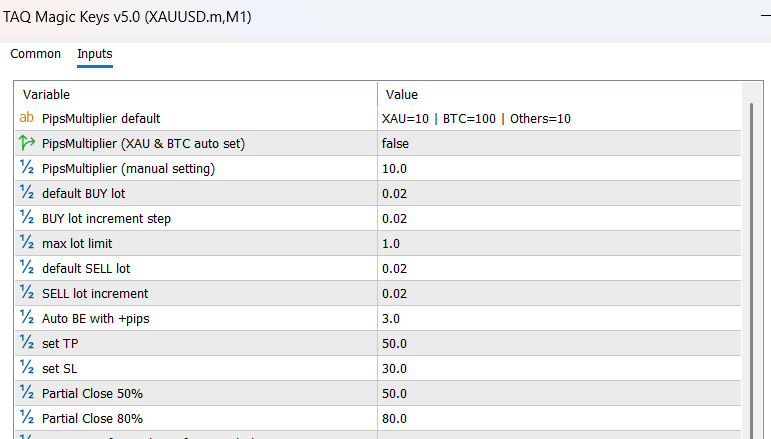
Default BUY Lot
This is the lot size used when you place a Buy trade. Every Buy order will start with this value unless modified by increment steps. For example, if you set it to 0.02 than single click will always set lot size 0.02, unless each Buy btn click more will add with 0.02 lots initially set for Buy lot increment.
BUY Lot Increment Step
This defines how much the lot size increases with each additional Default Buy Lot. For example, if Default BUY Lot = 0.02 and Increment Step = 0.03, then each new step increases like: 0.05 → 0.08 → 0.11 → 0.14. If you click once, it may stay at default; multiple clicks trades will apply increments. Be careful, while as higher increments can quickly increase risk.
Max Lot Limit
This sets a maximum cap on how large your lot size can grow. Even if increment steps continue, the EA will not allow trades beyond this limit. For example, if max lot is 0.10, your trade will never exceed 0.10 lots. This protects your account from excessive exposure. Always set this according to your account balance.
Default SELL Lot
This is the lot size used when you place a Sell trade. Every Sell order will start with this value unless modified by increment steps. For example, if you set it to 0.02 than single click will always set lot size 0.02, unless each Sell btn click more will add with 0.02 lots initially set for Sell lot increment.
SELL Lot Increment
This defines how much the lot size increases with each additional Default Sell Lot. For example, if Default Sell Lot = 0.02 and Increment Step = 0.02, then each new step increases like: 0.04 → 0.06 → 0.08 → 0.10. If you click once, it may stay at default; multiple clicks trades will apply increments. Be careful, while as higher increments can quickly increase risk.
Auto BE with +pips
This feature automatically moves your Stop Loss to Break Even once the trade reaches a certain profit. For example, if value set to 3 pips, and trade is in negative and want to immediately BE the running trade when your trade reaches above BE +3 pips.
But use carefully it will close trade early in volatile market.
If your trade reached to a certain profit and you want SL to breakeven than click it. SL will come to BE+3 pips. This removes risk and protects your capital. You can also combine it with trailing for better profit locking. It is highly recommended for safe trading.
Always check On and Off of BE function, if it ON than trail SL automatically at BE as price cross set limits
Set TP (Take Profit)
This defines the profit target in pips for each trade. For example, if TP = 50, the trade will close automatically at +50 pips profit. It helps automate exits without manual monitoring. You can adjust based on your strategy (scalping, swing, etc.). Larger TP means longer trades.
Set SL (Stop Loss)
This defines how much loss you are willing to accept per trade. For example, SL = 30 means trade close at -30 pips. It is the most important risk management tool. Never trade without SL, especially in volatile markets. Always set SL according to your strategy and account size.
Partial Close 50%
This closes 50% of your trade when click this btn at defined profit level. For example, if you opened 0.10 lots, 0.05 will be closed when triggered. The remaining portion continues running for more profit. This helps secure profits while still staying in the trade. It is useful for balanced risk management.
Partial Close 80%
This closes 80% of your position when click this btn at a defined level. For example, from 0.10 lot, 0.08 will close and only 0.02 remains. This locks most of your profit early. The remaining small portion can capture extended moves. It is useful in volatile markets.
You can change Partial Close % as per your requirement while setting up V5.0
FN2 TP3 Custom Strategy Settings
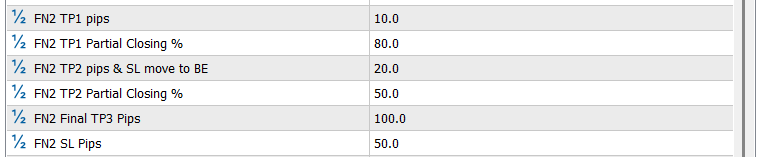
You can manage your trades automatically by setting this function key. Initial set SL & TP. TP1 for partial closing and TP2 for second partial closing and SL to BE. Following is step wise default setting and you can change as per your strategy and trade management.
FN2 TP1 Pips
This defines the First Profit Target where partial closing happens. For example, if set to 10 pips, partial closing triggers at +10 pips. It allows early profit securing. This step reduces risk quickly. Best used in fast-moving markets.
FN2 TP1 Partial Closing %
This defines how much of the Lot size to close at First Profit Target. For example, 50% means half of the Lot size is closed. The remaining portion continues running. This helps lock in early gains. Adjust based on risk preference.
FN2 TP2 Pips & SL move to BE
This defines the Second Profit Target where another partial close happens and SL moves to Break Even. For example, at 20 pips, partial closes and SL shifts to entry point. This ensures no loss after this level. It is a strong safety feature. Helps in trending markets.
FN2 TP2 Partial Closing %
Defines how much of the remaining Lot size to close at Second Profit Target. For example, 50% means 50% of close from remaining Lot size. This further reduces exposure. Remaining position continues with Final TP. Good for step-by-step exit strategy.
FN2 Final TP3
Final Take Profit level for FN2 trades. This closes any remaining Lot size automatically. It defines the maximum target. You can set higher TP for trend trades. Helps automate full exit.
FN2 SL
Stop Loss specific to FN2 trades. It controls maximum loss for this strategy. Should always be set properly. Works independently from other modes. Essential for risk control.
FN1 TP4 Strategy Settings
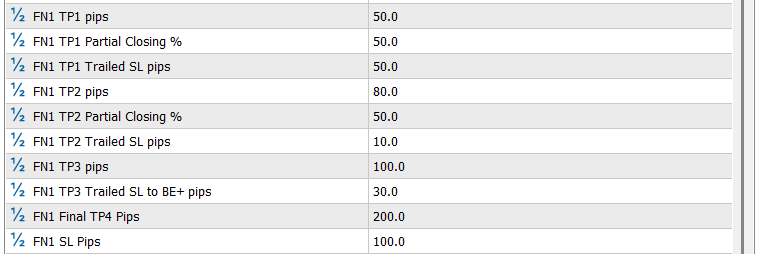
You can manage your trades automatically by setting this function key up to TP4.
Initial set SL & Final TP
Profit Target up to TP4 with partial closing & Traling SL
Following is step wise default setting and you can change as per your strategy and trade management.
FN1 TP1 Pips
Defines First Profit Target to secure partial profits. For example, at 50 pips, a portion closes. Helps reduce early risk. Useful in volatile entries. Works as first safety step.
FN1 TP1 Partial Closing %
Defines how much Lot size to close at TP1. For example, 50% closes early. Remaining continues running. Helps balance risk and reward.
FN1 TP1 Trailed SL pips
This function also reduce the risk by moving SL with profit levels. Defines how much to trailed SL in pips at TP1. For example SL trailed 100 to 50pips.
FN1 TP2 Pips
Defines 2nd Profit Target to secure partial profits. For example, at 80 pips, a portion closes. Helps reduce more risk. Useful in volatile entries. Works as 2nd safety step.
FN1 TP2 Partial Closing %
Defines how much Lot size to close more at TP2. For example, 50% closes more. Remaining continues running. Helps balance risk and reward.
FN1 TP2 Trailed SL pips
This function also reduce the risk by moving SL with profit levels. Defines how much to reduce SL in pips at TP2. For example SL trailed to 10pips.
FN1 TP3 Pips
Moves Stop Loss to Break Even. Ensures no loss after this level. For example, at BE+ 3pips, SL locks profit. Adds extra safety. Important for risk-free trading.
FN1 TP3 Trailed SL to BE+ pips
Trailed SL slightly into profit (not just BE). For example, BE + 2 pips locks small profit. Prevents spread losses. Ensures guaranteed gain. Useful in scalping. Can set 20 , 30 pips or more
FN1 Final TP4 pips
Final Take Profit for FN1 trades. Closes all remaining position. Defines ultimate target. Helps automate exit. Adjustable per strategy.
FN1 SL
Stop Loss for FN1 trades. Controls maximum risk. Must always be set properly. Works with all FN1 logic. Critical for protection.
FN Advance Strategy Settings
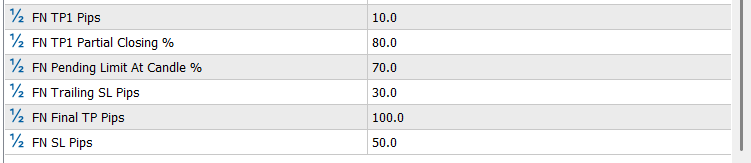
TAQ Magic Keys v5.0 has this amazing advance trade management function key. Traders can manage trades automatically by this function. Following is step wise default setting and you can change as per your strategy and trade management.
FN Pending Limits at Candle %
When trader took a trade at his strategy at a candle close, as the trade executed a pending order will be placed at 70% for candle size, with same lots, SL and TP. It allows to took a smart re-entry from lower price.
FN TP1 Pips
This defines the First Profit Level where partial closing happens. Default setting at 10 pips, partial closing triggers at +10 pips. It allows early profit securing. This step reduces risk quickly. Best used in fast-moving markets.
FN TP1 Partial Close %
This defines how much of the trade to close at First Profit Level. Default setting is 80% lot size is closed. The remaining portion running for TP. This helps lock in early gains. Adjust based on risk preference.
FN Trailing SL Pips
When partial closing did, at same time this function will tail SL to 30 pips to reduce risk. For example, initial SL is 50 pips than it will trail to 30 pips
FN Final TP pips
Final Take Profit level for FN function. This closes any remaining position automatically. It defines the maximum target. You can set higher TP for trend trades. Helps automate full exit. Default value 100 pips
FN SL
It controls maximum loss for this strategy. Should always be set properly. Essential for risk control. Default value 50 pips
Position Size Calculator
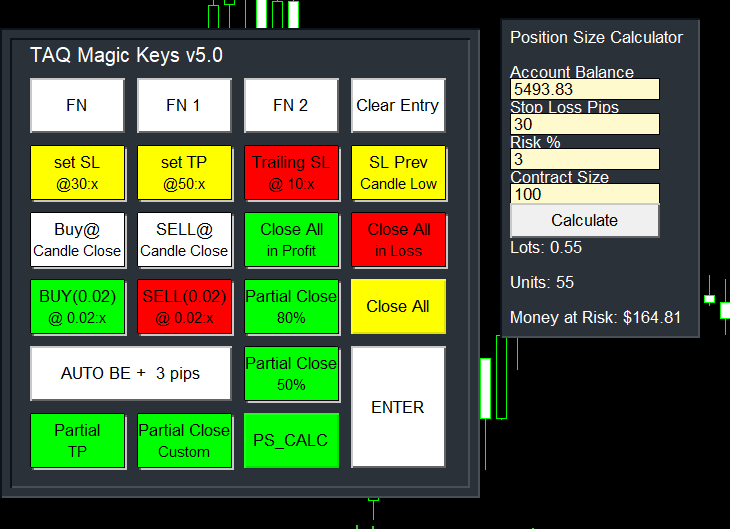
TAQ Magic Keys v5.0 has this strongest feature. The Position Size Calculator helps traders determine the correct lot size based on risk percentage and stop loss, so every trade is controlled and consistent.
Instead of guessing lot size, the calculator automatically tells you:
- ✔ How many lots to trade
- ✔ How much money you are risking
- ✔ How many units you are trading
⚙️ How It Works (Easy)
It need only 4 values:
1️⃣ Account Balance
Automatically pick your current trading balance
Example: $5493
2️⃣ Stop Loss (Pips)
Enter your SL here
What is your SL for trade, or how much pips you want to give for SL
Example: 30 pips
3️⃣ Risk %
Enter your Risk here
How much of your account you want to risk. 1% or 2% or 3% of account
Example: 3%
4️⃣ Contract Size
Contract Size defines: How many units you control with 1 lot. Depends on broker, but commonly (standard = 100)
(1 Lot = 100 ounces of gold) (1 Lot = 1 BTC)
default value is 100
What the Calculator Does, Based on your inputs, it calculates:
✅ Lot Size
How big your trade should be
Example: Lots: 0.55
✅ Units
Actual position size
Example: Units: 55
✅ Money at Risk
Maximum loss if SL is hit
Example: Money at Risk: $164.81